PDF Studio › All tools › Remove pages from a PDF
Remove pages from a PDF
Type the page numbers you do not want and get a new PDF without them. The remaining pages are copied unchanged, and your original file stays as it was.
Open Remove pagesFree, no sign-up, no watermark. The file is processed on your device and never uploaded.
How to delete pages
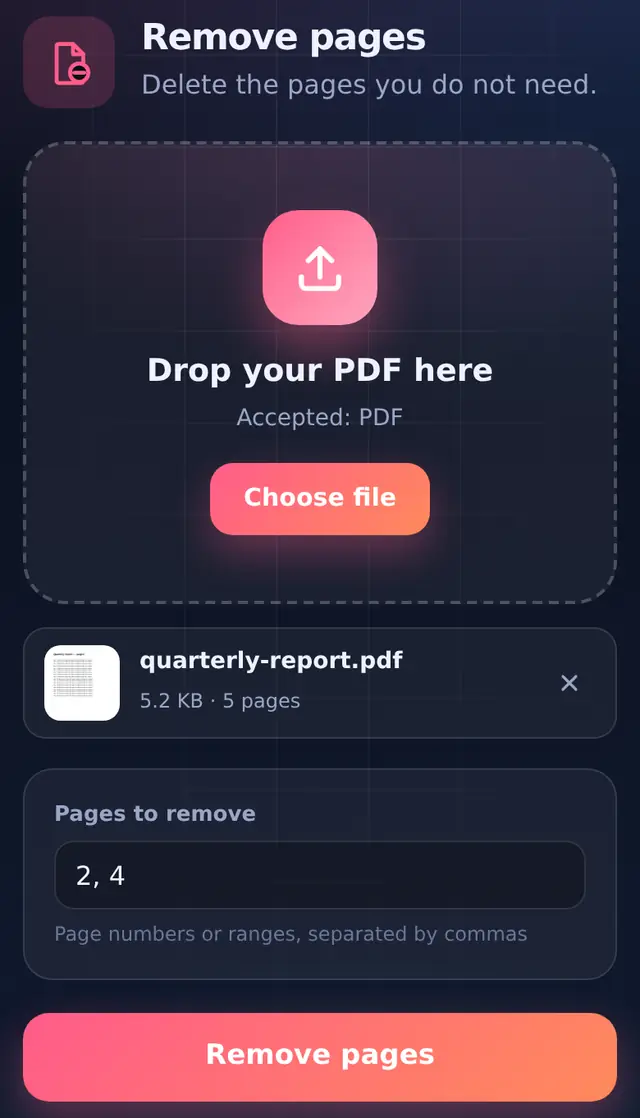
- Add the PDFOnce it loads, the file card shows how many pages it has.
- Type the pages to removeSingle pages and ranges, separated by commas:
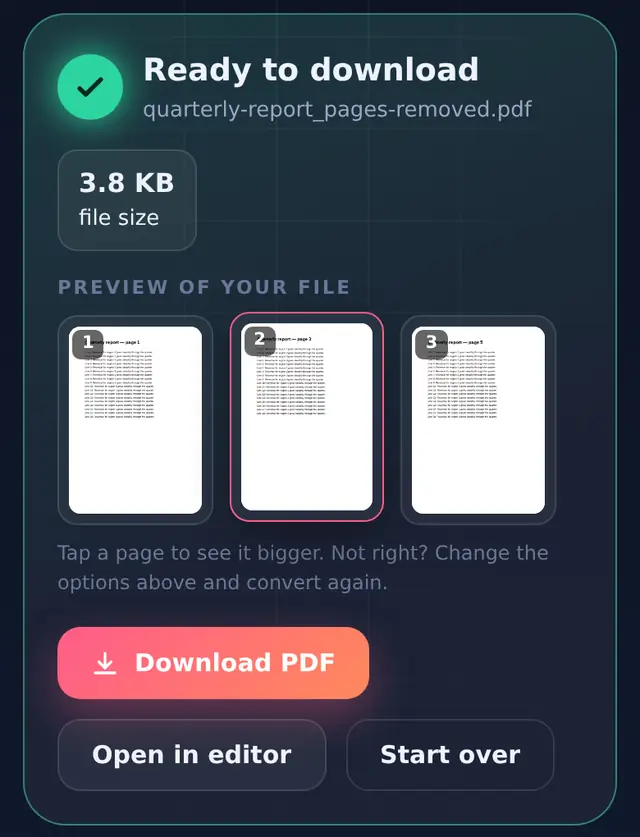
2, 4or1, 7-9or12-for page 12 to the end. - Remove and check the previewThe preview shows what remains. If something is wrong, change the numbers and run it again.
- DownloadThe file is saved as
name_pages-removed.pdf.
You cannot remove every page, because a PDF needs at least one. The tool tells you if the numbers you typed would do that.
Typing numbers or picking visually?
This tool is quickest when you already know the page numbers, for example "drop the blank last page" or "remove pages 3 to 6". If you need to look at the pages to decide, open the file in Edit PDF instead. Its page strip shows a thumbnail of every page with a delete button, and you can undo a mistake.
Good to know
- Numbers are file positions. Front matter numbered i, ii, iii still counts as pages 1, 2, 3 here.
- Nothing is re-compressed. The pages you keep are identical to the original. The file usually gets smaller only if the removed pages held large images.
- Password-protected PDFs must be unlocked first with the password.
Questions people ask
Can I get the removed pages back?
Your original file is never modified, so the removed pages are still in it. Keep the original until you have checked the new file.
I want to keep only a few pages. Is there a faster way?
Yes. Use Split PDF with the pages you want to keep and tick "Put all ranges into one PDF".
Does it work with scanned PDFs?
Yes. Removing pages works the same whether a page is typed text or a scanned image.