PDF Studio › All tools › Convert JPG and photos to PDF
Convert JPG and photos to PDF
Combine photos, screenshots or phone scans into one PDF, one image per page, in the order you choose. JPG photos are placed as they are, without another round of compression.
Open JPG to PDFFree, no sign-up, no watermark. The file is processed on your device and never uploaded.
How to make a PDF from images
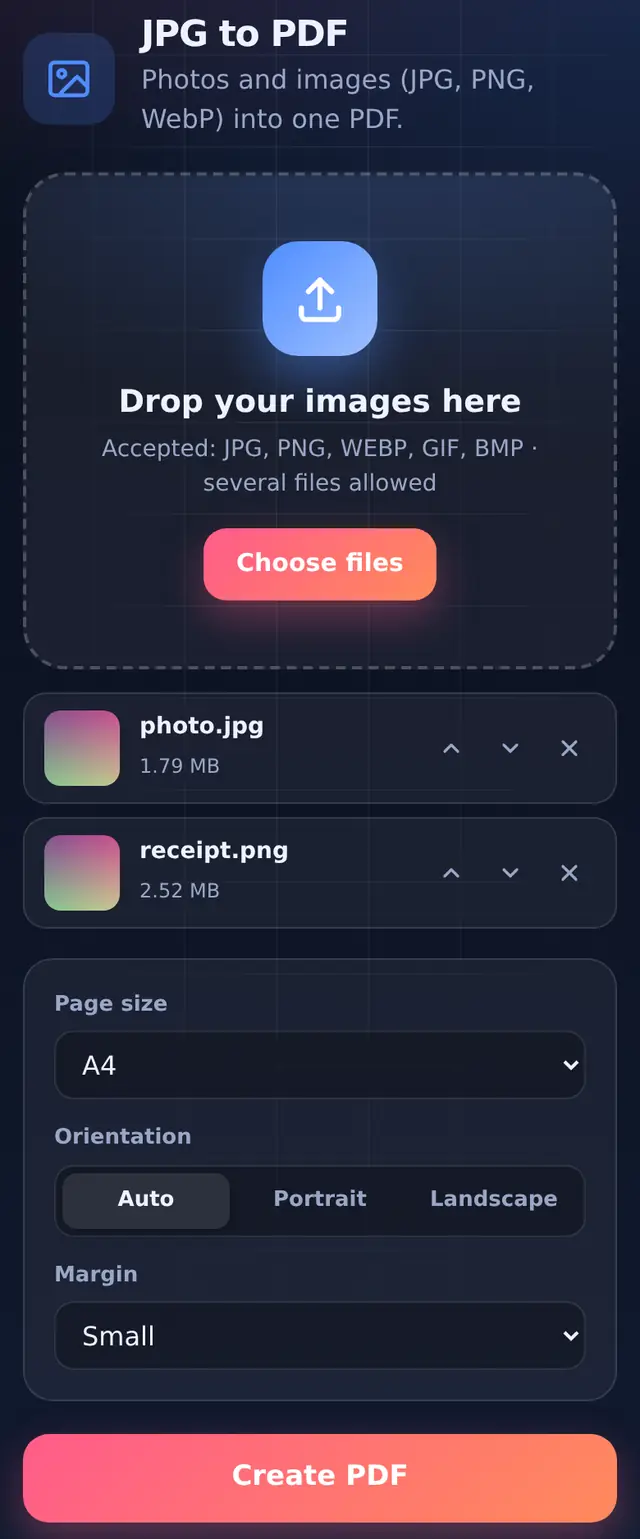
- Add your imagesJPG, PNG and WebP (GIF and BMP work too). Select several at once.
- Put them in orderUse the arrows on each image. The top image is page 1.
- Choose page size, orientation and marginThe defaults (A4, Auto, Small margin) suit documents. Details below.
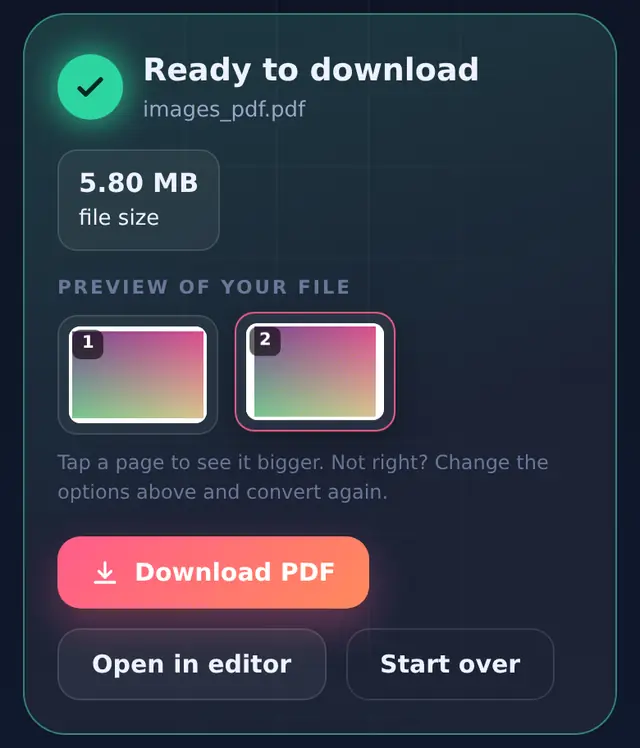
- Create PDF and downloadWith one image the PDF is named after it; with several it is called
images_pdf.pdf.
The options, explained
| Option | Choices | What it does |
|---|---|---|
| Page size | A4 (default), Letter, Same as image | A4 and Letter give standard printable pages. Same as image makes each page the shape of its photo, which suits photo albums and screenshots. |
| Orientation | Auto (default), Portrait, Landscape | Auto turns the page landscape for wide images and portrait for tall ones. |
| Margin | None, Small (default), Large | White space around each image: about 7 mm or 14 mm. None fills the page edge to edge. |
Each image is scaled to fit its page without cropping or stretching, and centred.
Quality and file size
JPG photos are placed into the PDF without being re-encoded, so they keep their full quality. (The exception is a photo that has to be turned upright first; it is saved again at high quality.) The flip side is that the PDF is about as big as the photos together. In our test a 1.8 MB photo and a 2.6 MB PNG made a 6.1 MB PDF. For email or an upload form, either compress the images first with Compress image or compress the finished PDF with Compress PDF.
Photos taken with the phone held sideways are turned the right way up using the orientation your camera recorded, so pages are not sideways in the PDF.
For document scans
This is the quickest way to turn phone photos of a form, ID or receipts into one PDF. Crop each photo to the paper edges in your gallery first, and shoot in daylight without flash. Our guide to scanning documents with your phone has the details that make the biggest difference.
Questions people ask
Can I make a separate PDF for each image?
The tool puts all added images into one PDF. For separate files, convert one image at a time.
Does it work with HEIC photos from an iPhone?
Only if your browser can open HEIC, which most cannot. iPhones usually convert to JPG automatically when you pick a photo for upload; if not, set Camera format to "Most Compatible" in the iPhone settings.
Can I add a photo to an existing PDF?
Convert the photo to a PDF here, then combine the two with Merge PDF. To place a photo on an existing page, use the Image tool in Edit PDF.