PDF Studio › All tools › Compress a PDF and keep it readable
Compress a PDF and keep it readable
Make a PDF smaller for email or an upload form. You can simply shrink it, or set the exact limit a form asks for, such as 100 KB or 200 KB, and let the tool find the best quality that still fits.
Open Compress PDFFree, no sign-up, no watermark. The file is processed on your device and never uploaded.
How to compress a PDF
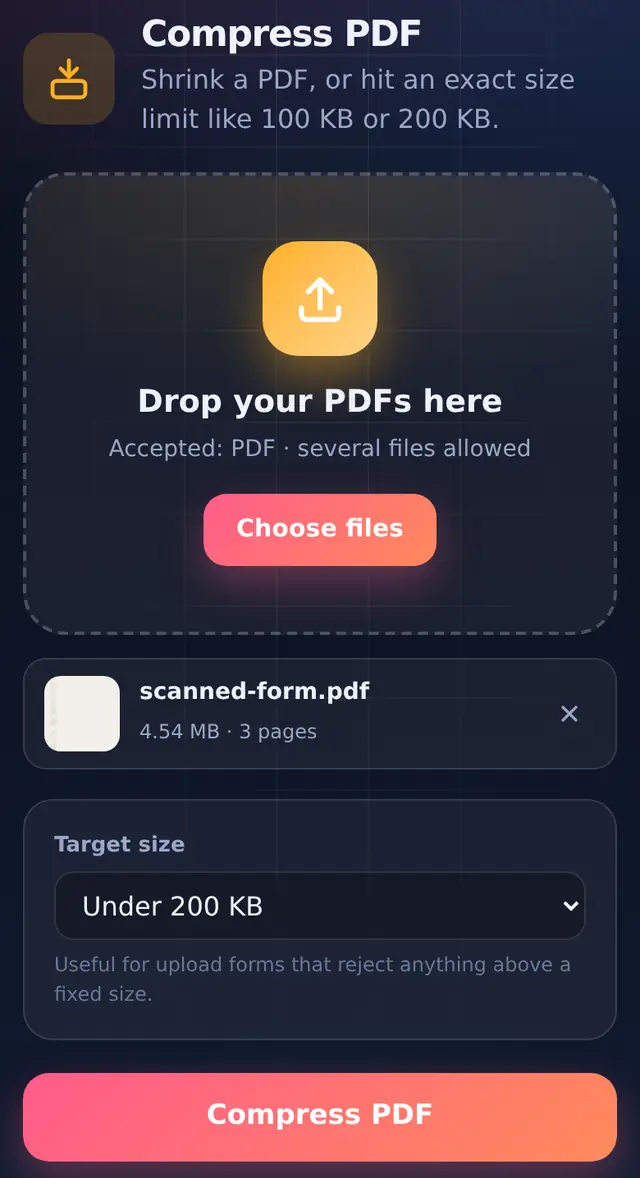
- Add the PDFYou can add several; each is compressed separately.
- Choose a target size, or noneLeave No limit — just make it smaller and pick Light, Balanced or Strong. Or pick a limit: 50 KB, 100 KB, 200 KB, 300 KB, 500 KB, 1 MB, 2 MB, or Custom size for anything from 10 KB to 20,000 KB.
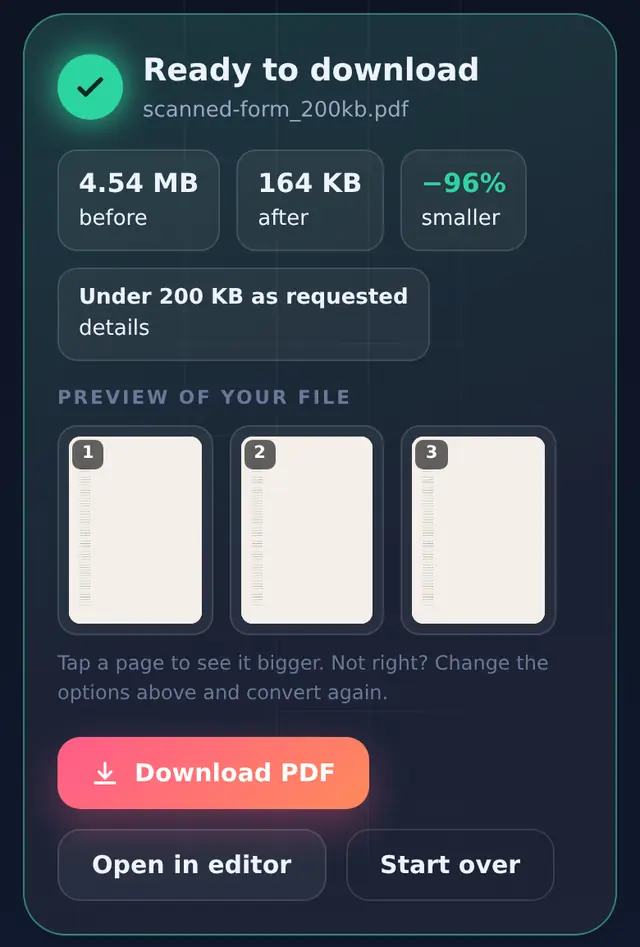
- Press Compress PDFThe result card shows the size before and after and how much smaller it got, plus a preview of each page so you can check readability.
- DownloadThe file name tells you what happened, for example
form_200kb.pdf. Your original is untouched.
What gets smaller, and what does not
A PDF is mostly made of two things: text and drawings, which are stored as compact instructions, and pictures, which are stored as image data. Photos and scanned pages are where nearly all the size is. The tool re-encodes those pictures and leaves text, fonts and line drawings exactly as they are. That is why text stays sharp and selectable even after a big reduction.
| Setting | Picture quality | Longest side of each picture | Use it for |
|---|---|---|---|
| Light | 85% | up to 2400 px | Photos you still want to print |
| Balanced (default) | 70% | up to 1600 px | Everyday sharing and email |
| Strong | 50% | up to 1100 px | Getting a big scan as small as possible |
Very small images such as logos and icons are skipped, because re-encoding them saves nothing and can make edges look rough.
Exact size targets, with measured results
When you choose a limit, the tool starts at high quality and steps down only until the file fits. It stops at the first setting that works. The first three steps keep pictures at 60% quality or better and at least 1280 px on the long side, which is about 150 dpi on an A4 page and comfortable to read on screen. If the file still does not fit, it asks you before going further, because below that point small print can get blurry. You can say no and keep the better-quality version.
We ran our own test files through each target. The scans are A4 pages scanned at 300 dpi; the typed file is a 5-page report with a table.
| File | Original | Under 50 KB | Under 100 KB | Under 200 KB | Under 500 KB | Under 1 MB |
|---|---|---|---|---|---|---|
| 1-page scan | 1.51 MB | 26 KB | 55 KB | 55 KB | 202 KB | 202 KB |
| 3-page scan | 4.54 MB | 46 KB* | 77 KB | 164 KB | 164 KB | 606 KB |
| 5-page typed report | 5.2 KB | 3.8 KB | 3.8 KB | 3.8 KB | 3.8 KB | 3.8 KB |
* The tool asked for confirmation first, because reaching 50 KB needed the stronger settings.
Two things stand out. First, a looser target gives a better file: with a 500 KB limit the 1-page scan came out at 202 KB, with noticeably more detail than the 55 KB version. So choose the largest limit the form allows, not the smallest one in the list. Second, typed documents are already tiny. If a text-only PDF is large, it is usually because of embedded pictures or fonts, not the pages of text.
Under 50 KB
Realistic for one typed page or one scanned page. Several scanned pages can get there only with strong compression, which is why the tool asks before it goes that far. If small print must stay readable, split the pages and upload them separately when the form allows it.
Under 100 KB
Comfortable for a single scanned page and possible for two or three, as the table shows. Check the preview for any page with small print before you upload.
Under 200 KB
Enough for a few scanned pages at good on-screen quality. In our test a 3-page scan reached 164 KB without needing the stronger settings.
Under 500 KB and 1 MB
Room for longer scans and documents with several photos. Pictures stay close to their original look, so these are good choices for email attachments and anything that might be printed.
Compressing on a phone
Nothing needs to be installed. Open this site in Chrome on Android or Safari on iPhone, tap Choose files, pick the PDF from your downloads or files app, and the compressed copy downloads back to the phone. Everything runs on the phone itself, so it also works on a slow connection once the page has loaded.
If you opened the link inside Instagram, WhatsApp or another app, use the menu to open it in your real browser first. Built-in app browsers often block file downloads.
When a file will not get smaller
If the result says "Smallest this file can go", the size is coming from something other than pictures: embedded fonts, a very long text layer, or pictures stored in a way the tool leaves alone to avoid damaging them. Our guide on why some PDFs will not compress walks through each case and what to try.
Scans taken with a phone camera in good light usually compress far better than the same page from a flatbed scanner set to maximum resolution. See how to scan documents with your phone.
Questions people ask
Will my PDF still look the same?
The text, layout and page sizes stay exactly the same. Only photos and scanned images change, and the preview lets you check them before downloading.
The form says "less than 100 KB". Is exactly 100 KB safe?
The tool aims below the limit, so a 100 KB target gives a file under 100 KB, never equal to or over it.
Can I compress Word, Excel or PowerPoint files too?
Yes, with Compress Office, which shrinks the pictures inside .docx, .xlsx and .pptx files without touching the formatting.
Is my file uploaded anywhere?
No. The whole process runs in your browser. You can check it yourself: compress one file, switch on airplane mode, then compress another. It still works, because nothing needs the internet once the tool has loaded. Our article on whether online PDF tools are safe explains how to verify this on any site.