PDF Studio › All tools › Password protect a PDF
Password protect a PDF
Lock a PDF so it asks for a password before it opens, and choose what people may do once it is open: print it, copy its text, or edit it.
Open Protect PDFFree, no sign-up, no watermark. The file is processed on your device and never uploaded.
How to protect a PDF
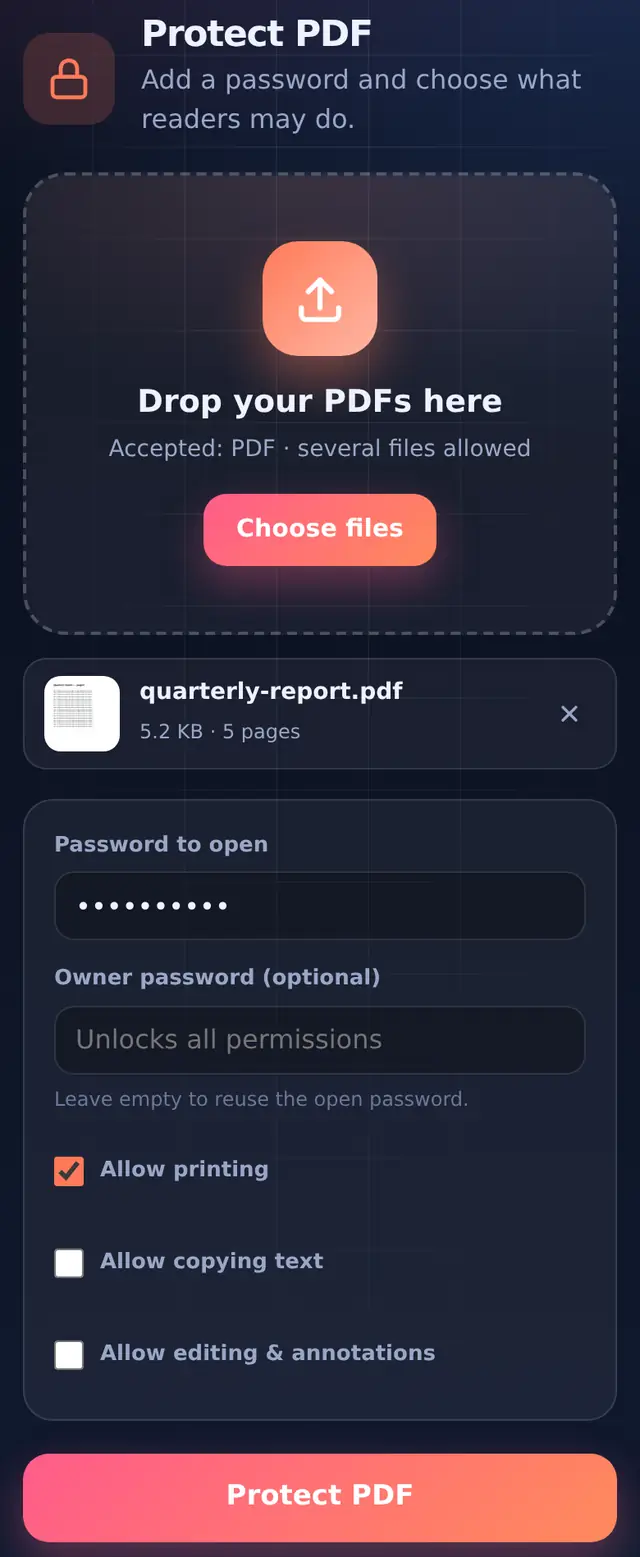
- Add the PDFSeveral files can be protected with the same settings.
- Type the password to openAnyone opening the file will need it. Choose something you can share safely, and not a password you use elsewhere. To only restrict printing, copying or editing, leave it empty and set an owner password instead.
- Optionally set an owner passwordLeave it empty and the open password is used for both.
- Choose permissionsPrinting is allowed by default; copying text and editing are off by default.
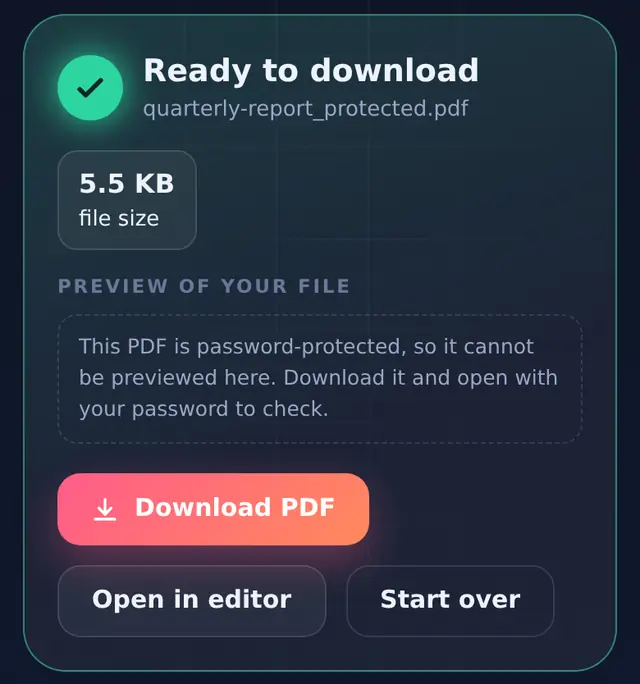
- Protect and testDownload
name_protected.pdf, open it, and check the password works before you send it.
How strong the lock is
Every file protected here is encrypted with 128-bit AES, whatever PDF version it started as, and opens in every current PDF reader. With AES the weak point is no longer the encryption but the password itself, so choose a long one (tips below).
The two passwords, in plain words
| Password to open | Owner password | |
|---|---|---|
| What it does | Needed to open and read the file | Needed to change the permissions or remove the protection |
| Who needs it | Everyone you send the file to | Only you |
| If you leave it empty | The file opens without a password, and only the permissions apply (set an owner password for that) | The open password is used |
If you want readers to open the file but not change its settings, set both, keep the owner password to yourself, and share only the open password.
What the permissions really do
Print, copy and edit permissions are instructions to the PDF reader. Adobe Acrobat, browser viewers and phone apps respect them, so the print button is greyed out, text cannot be selected, and so on. Not every program respects them, though, and anyone who can open the file can still take screenshots. Treat permissions as a strong hint, and the open password as the real lock.
For something truly sensitive, a password that is long rather than clever is the best defence: four unrelated words such as river-lamp-orange-desk are far harder to guess than Pass@123. Send the password by a different route than the file, for example the file by email and the password by phone.
Forgotten the password?
Nobody, including us, can recover it; the file is not stored anywhere. Keep the unprotected original somewhere safe. If you still know the password and just want the protection gone, use Unlock PDF. Unlocking rebuilds each page as a high-quality image, so the text is no longer selectable afterwards.
Questions people ask
Can I protect a PDF on my phone?
Yes. It works in Chrome on Android and Safari on iPhone, and the protected file downloads to your phone.
Does protecting change how the PDF looks?
No. The pages are the same; only the password and permissions are added.
Can I protect Word or Excel files here?
Convert them to PDF first with Word to PDF or Excel to PDF, then protect the PDF.